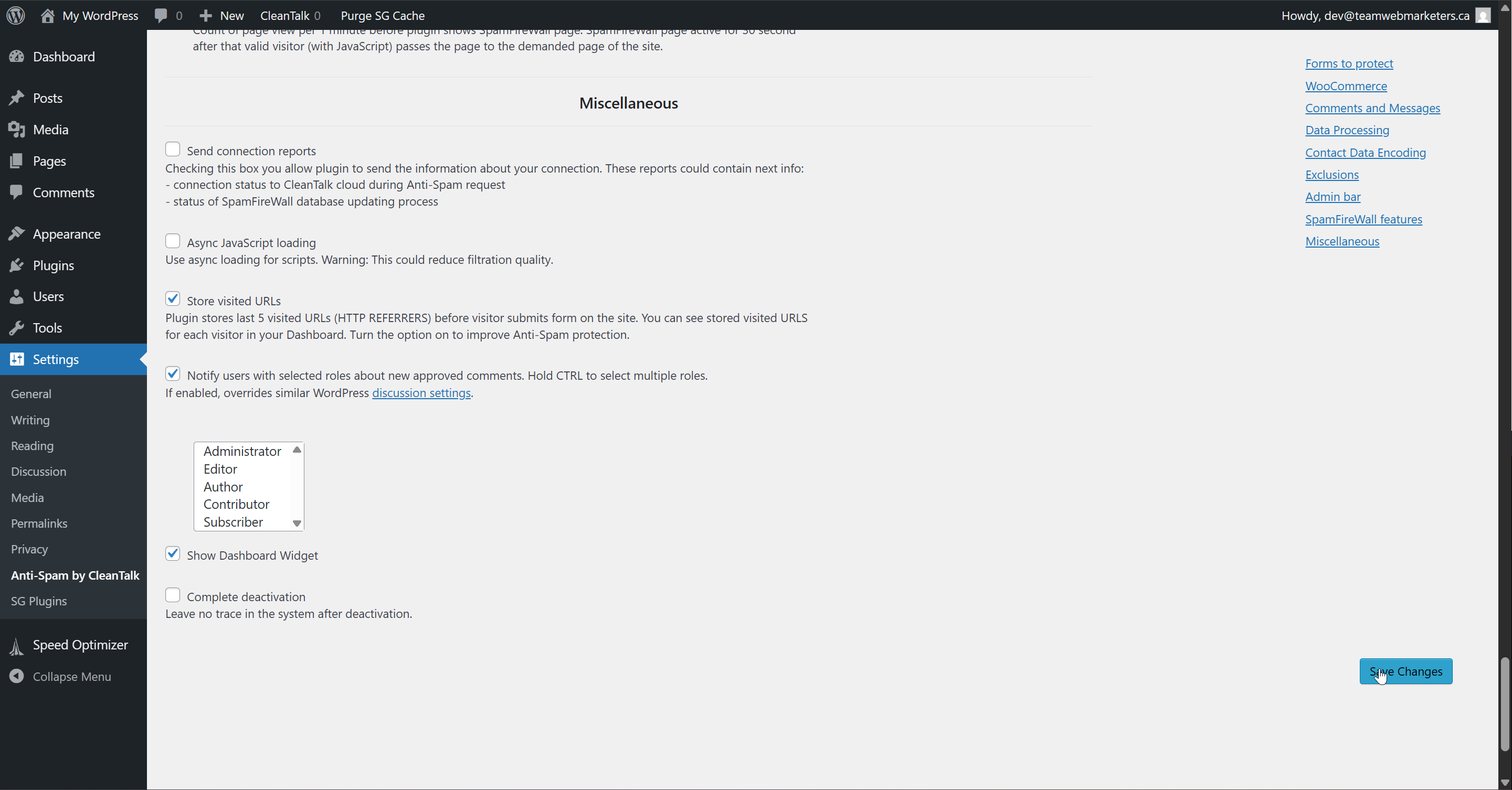
Anti-Spam by CleanTalk
What is CleanTalk?
The "Anti-spam by CleanTalk" WordPress plugin is a cloud-based solution that automatically blocks spam comments, registrations, contact form submissions, and other types of spam across your site without using CAPTCHA or intrusive challenges. It works silently in the background by analyzing user behavior and validating email addresses in real time, ensuring a smooth experience for legitimate visitors. The plugin also includes features like spam firewalls, blacklist checks, and compatibility with WooCommerce and other major plugins.
This guide's steps assume you are installing and configuring the plugin from scratch. If the plugin is already installed on your website, the steps or results may vary.
How do I set it up on a WordPress website?
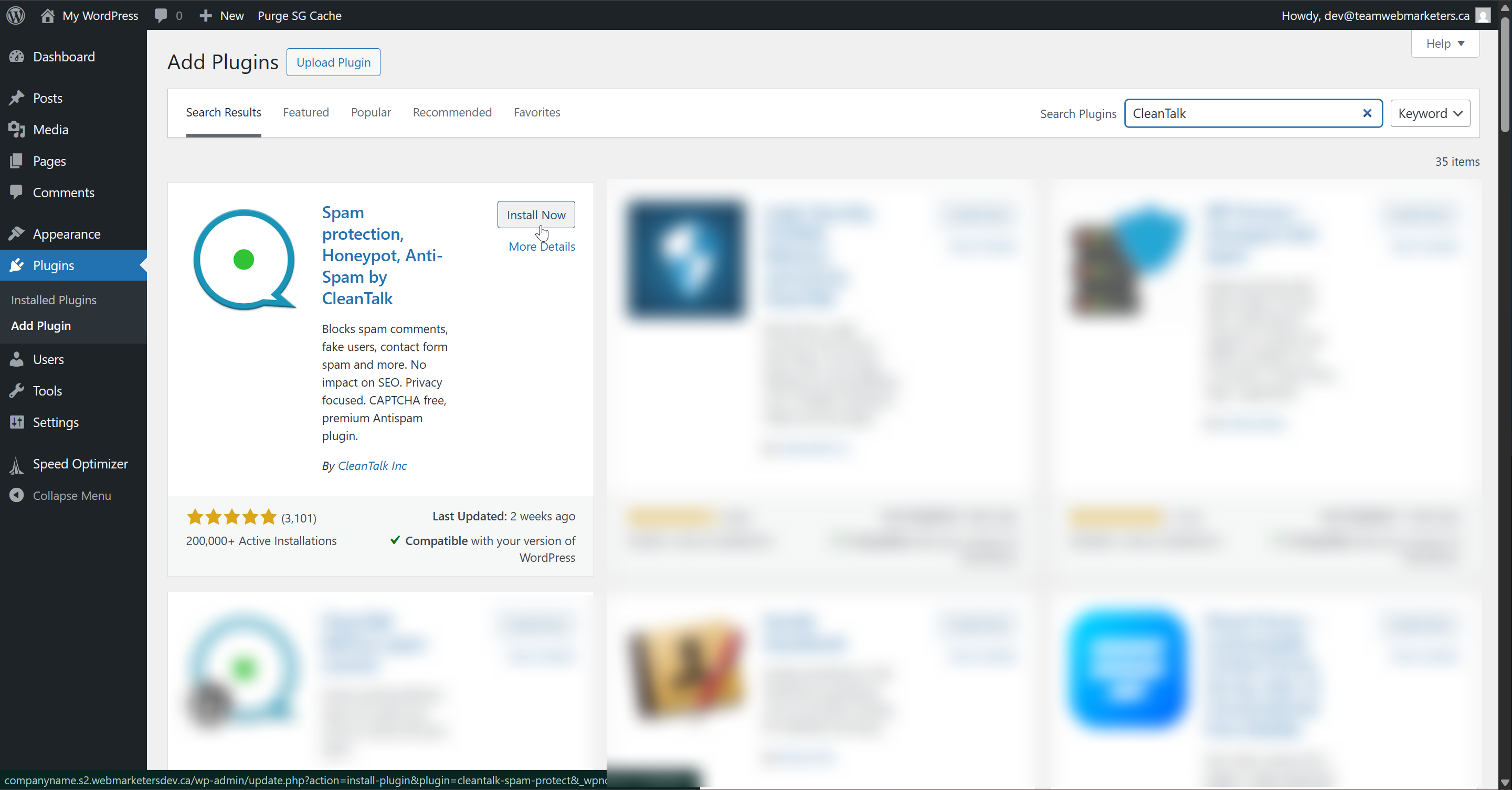
1. Install & Activate the plugin
Name: Spam protection, Honeypot, Anti-Spam by CleanTalk
Author: CleanTalk Inc
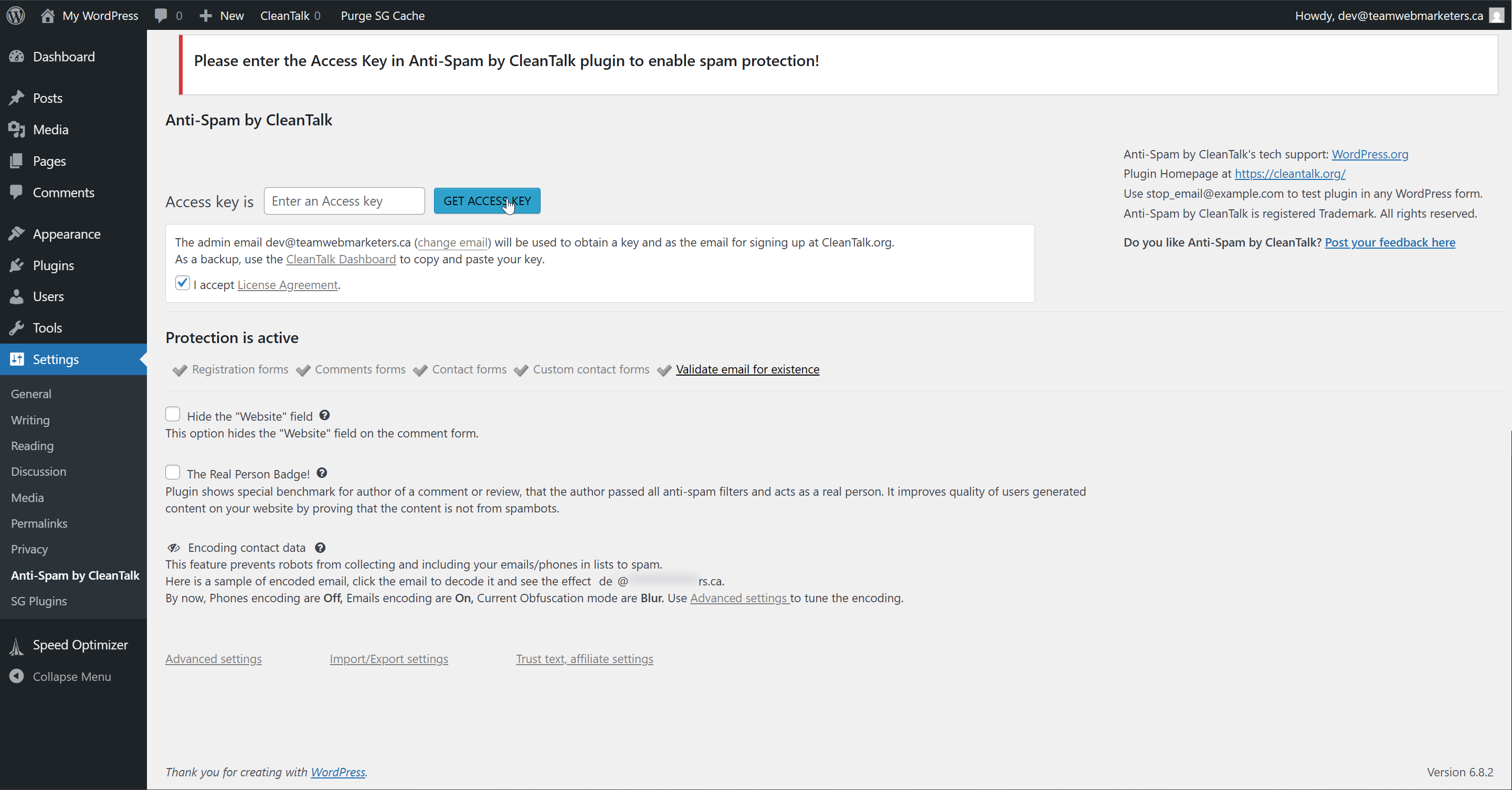
2. Generate & Add the Access Key
First, click the "Get Access Key" button.
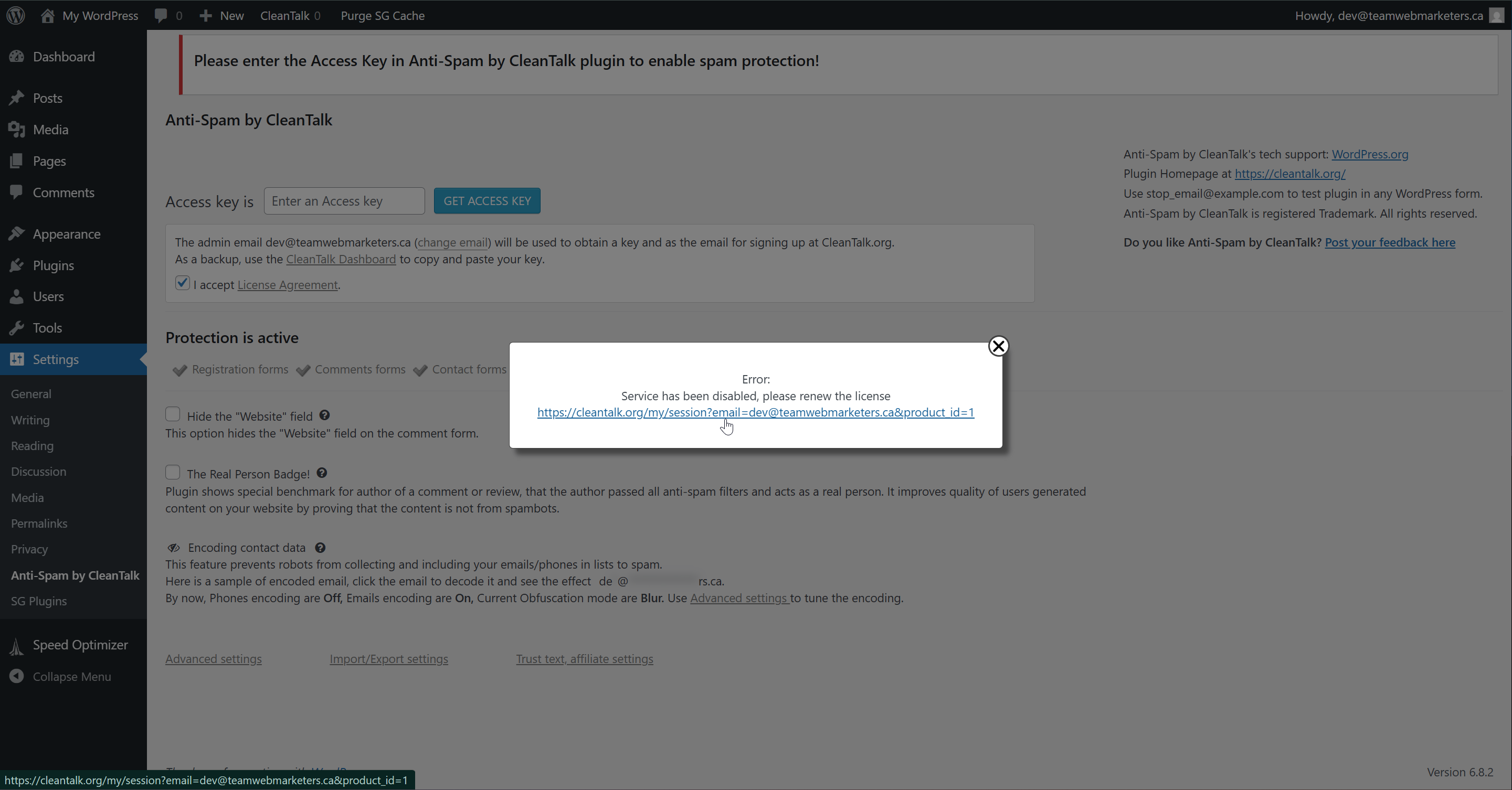
Second, you should get this popup.
Click the link.
If you are not logged in, please do so using the [email protected] account credentials in LastPass.
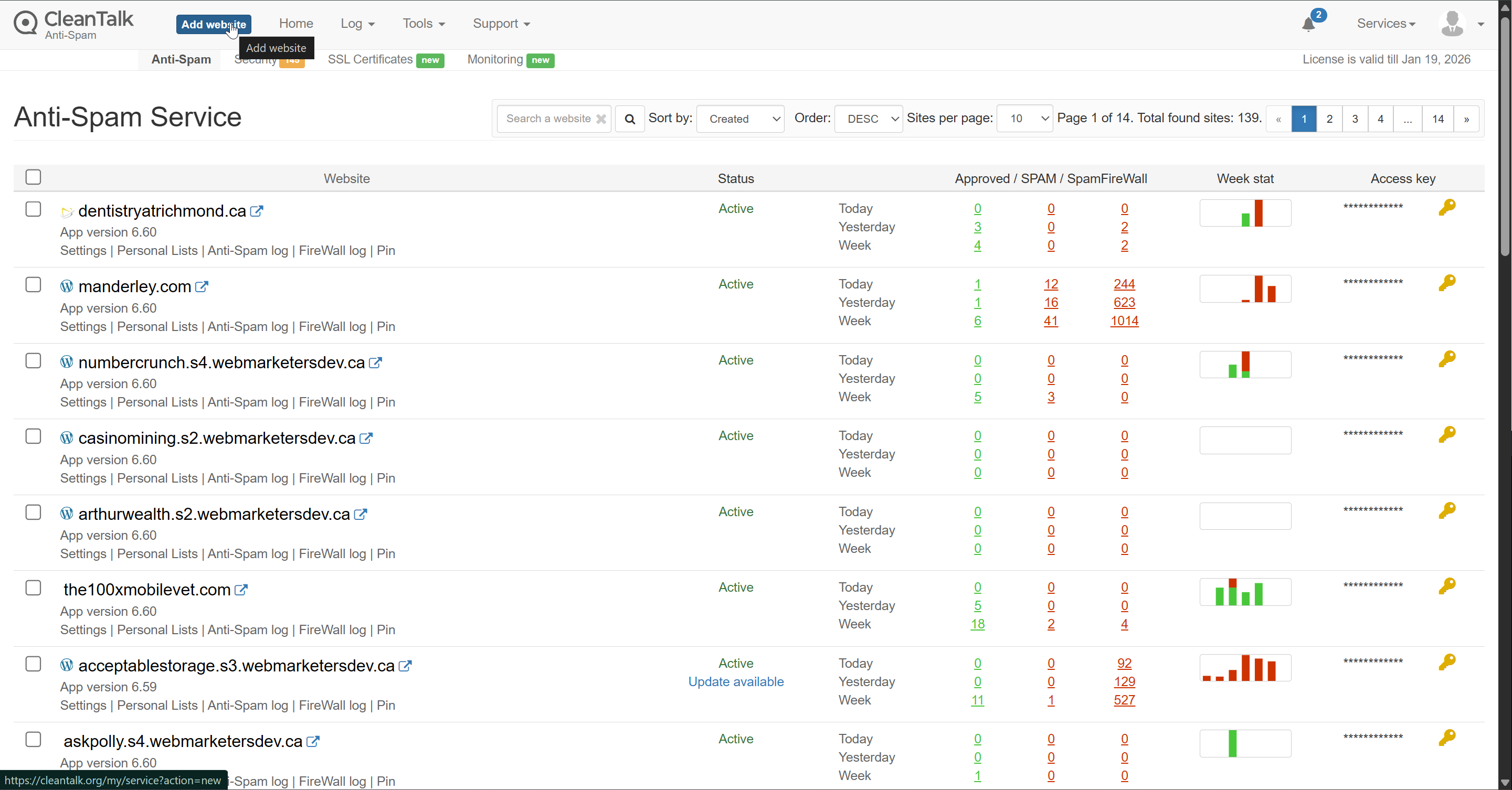
In the top left, click "Add website".
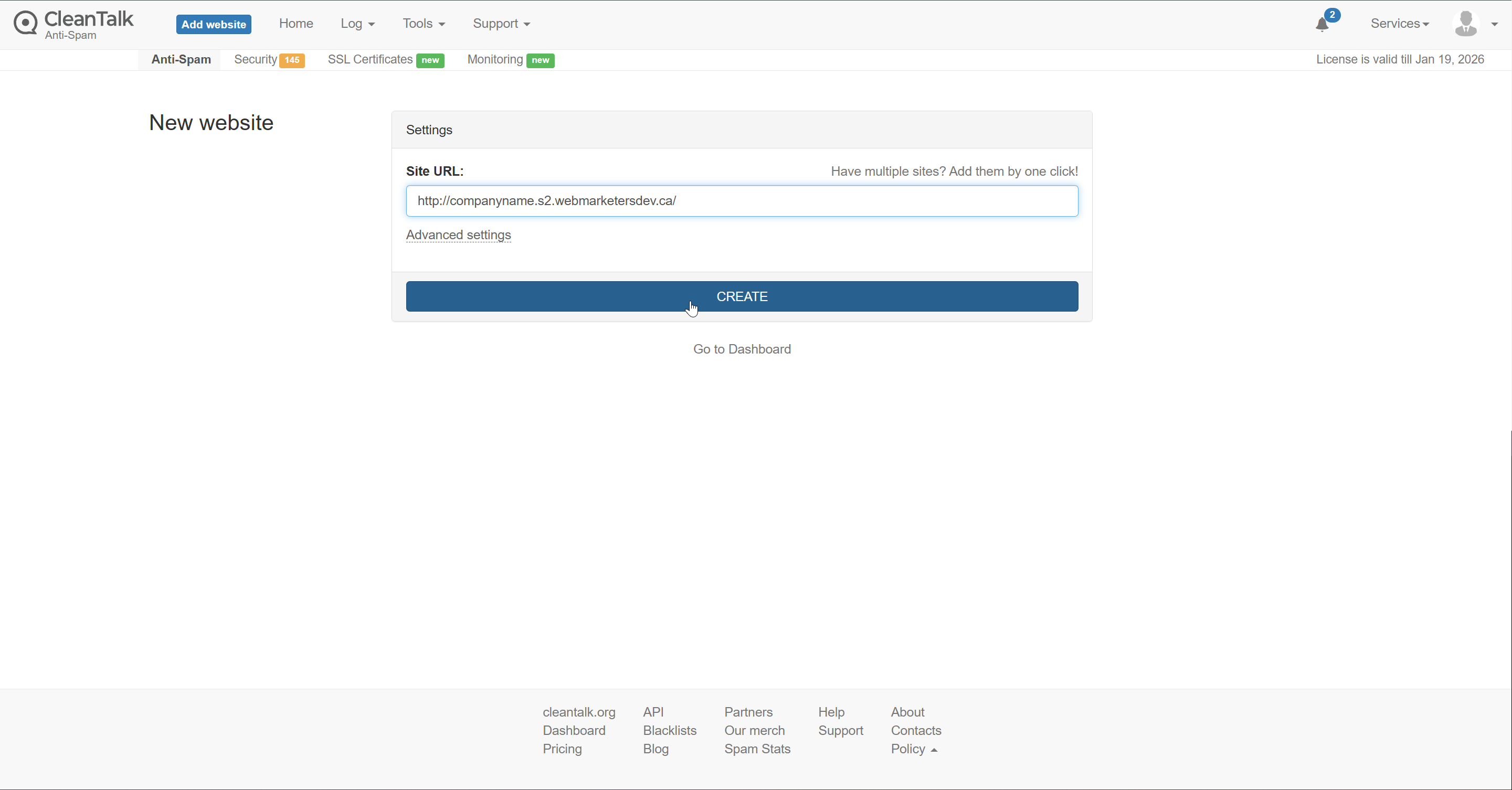
Paste in the URL of your website and click "Create".
In this example, I'm using http://companyname.s2.webmarketersdev.ca/
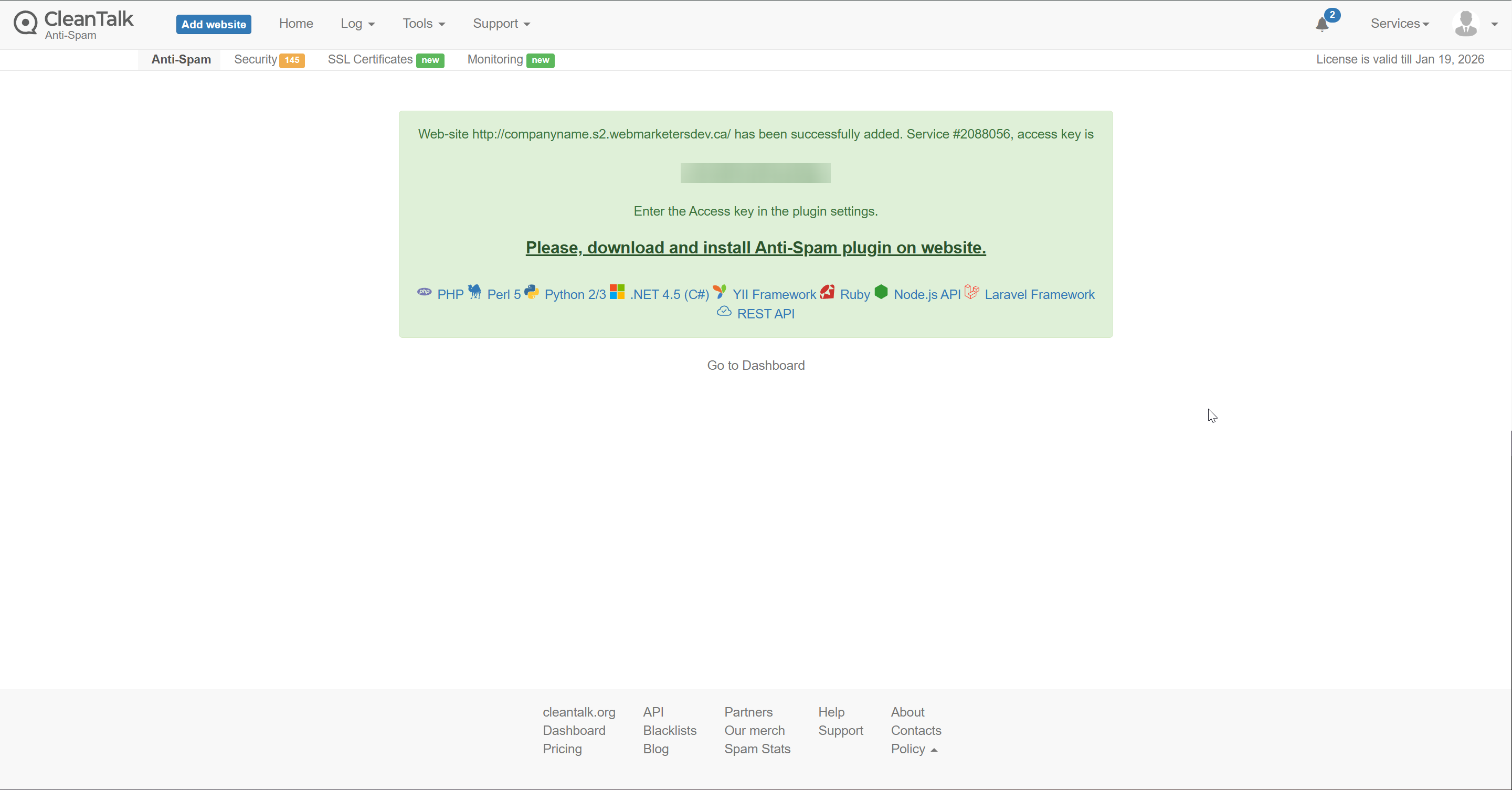
Copy your access key:
Paste the key and then click "Save the Access Key".
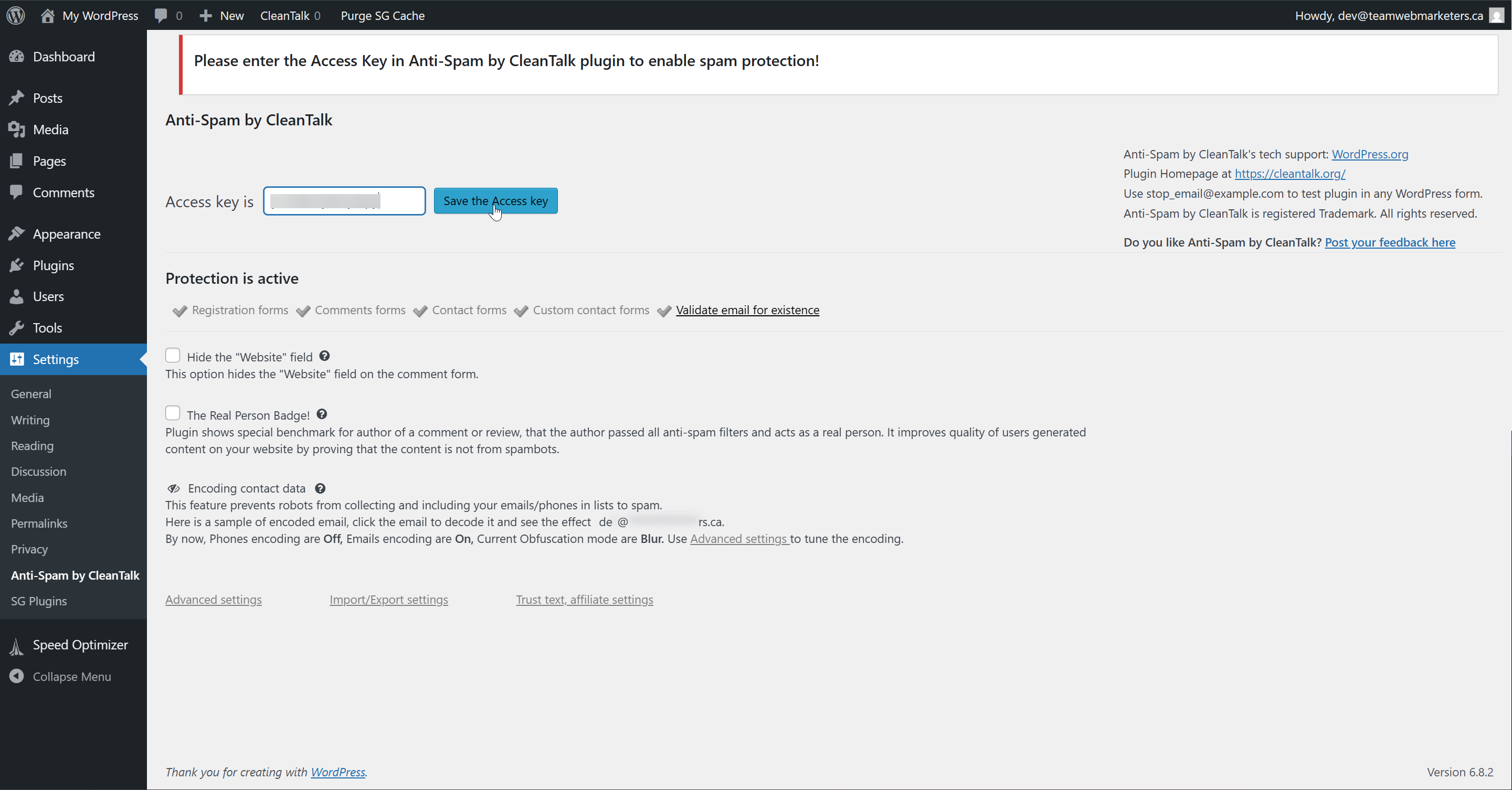
After about 5-10 seconds, it should notify you that CleanTalk protection is active, it looks like this:
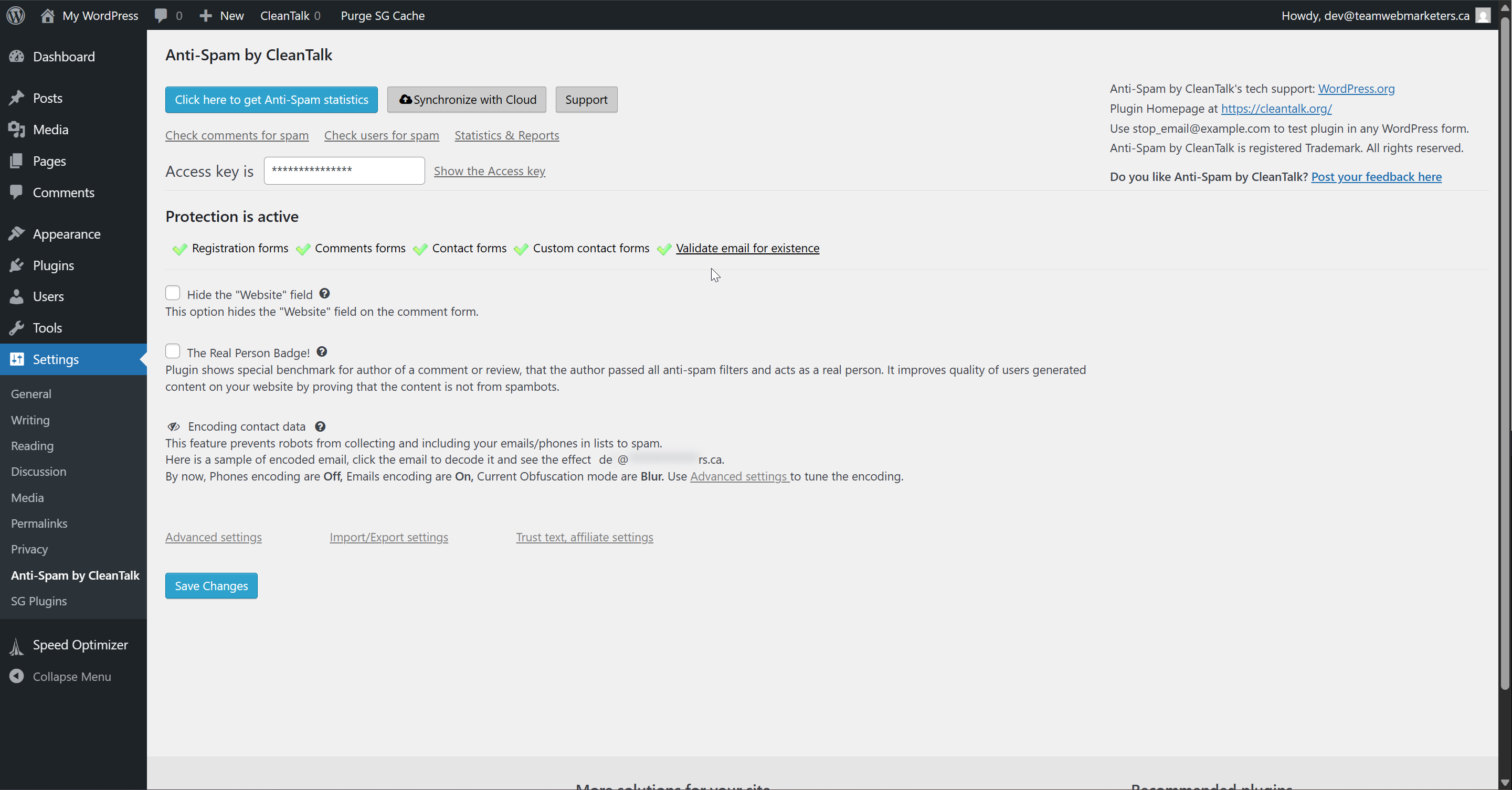
3. Configure the Plugin
Anti-Spam by CleanTalk offers a lot of security features. The primary reason we install the plugin is for contact form protection, to mitigate spam. However, we also use it for disabling the WordPress Comment functionality on posts, and there are some features we like to turn off.
Click "Advanced Settings"
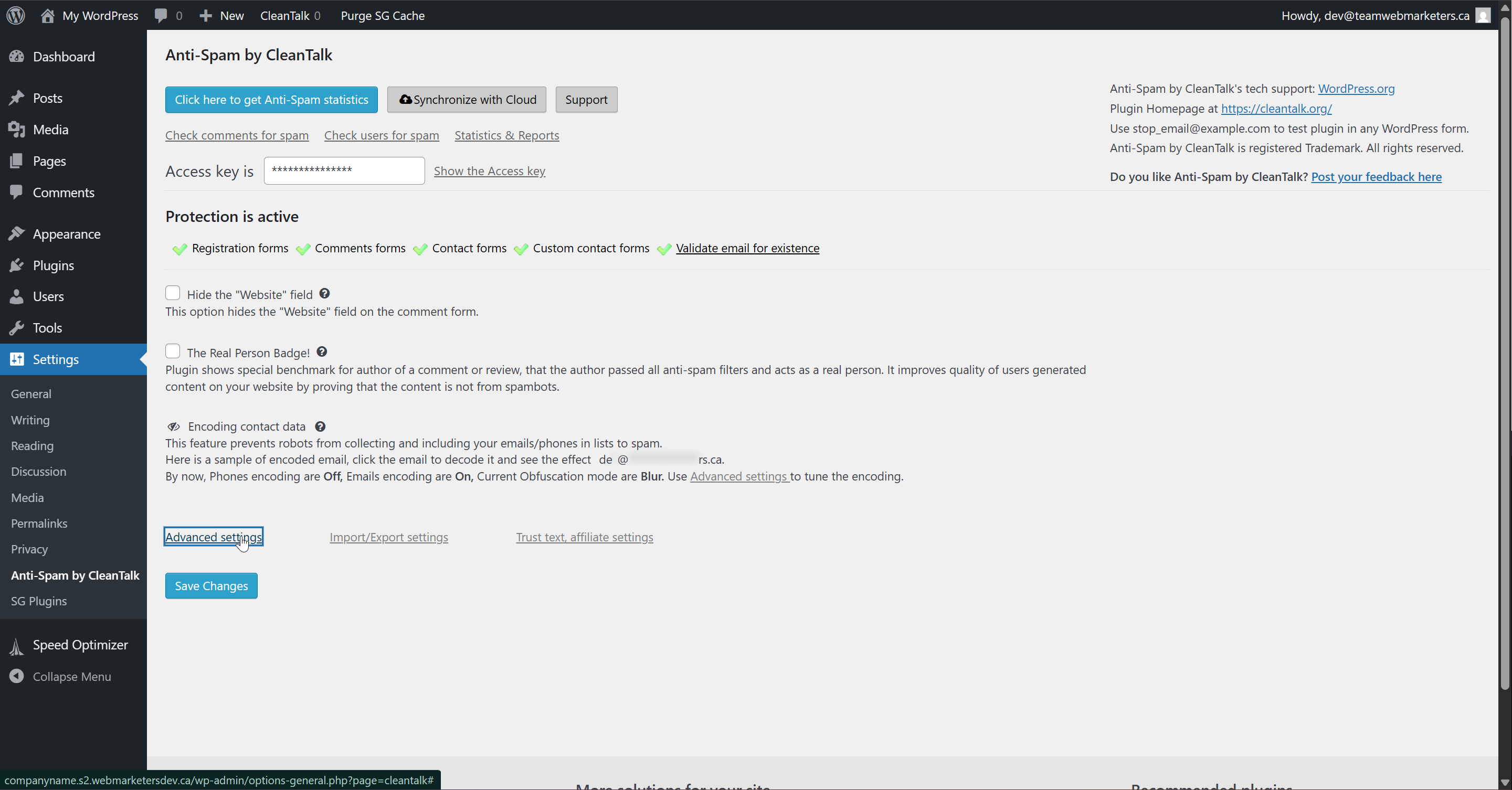
Scroll to "Comments and Messages" and turn on "Disable all comments"
This will turn off all comment functionality and prevent visitors from seeing spam. It also reduces the risk of database bloat from comments, and keeps the admin interface clean.
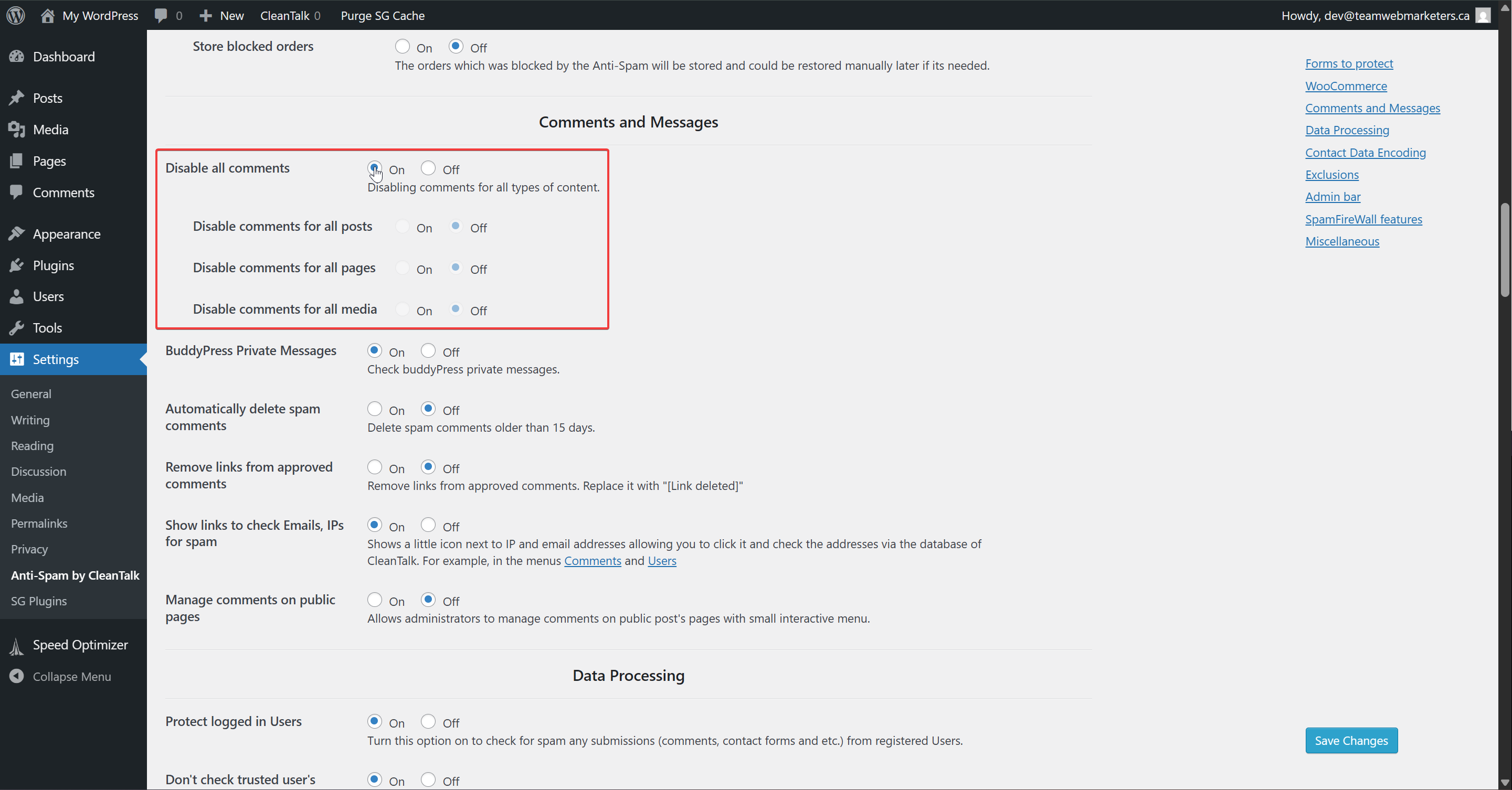
Scroll to "Contact Data Encoding" and turn off "Encode contact data"
We turn off contact data encoding because it's not usually something that clients and users want to see. It's a very effective feature, but adds a visual blur on contact data, which many people seem to dislike. For this reason, we turn it off.
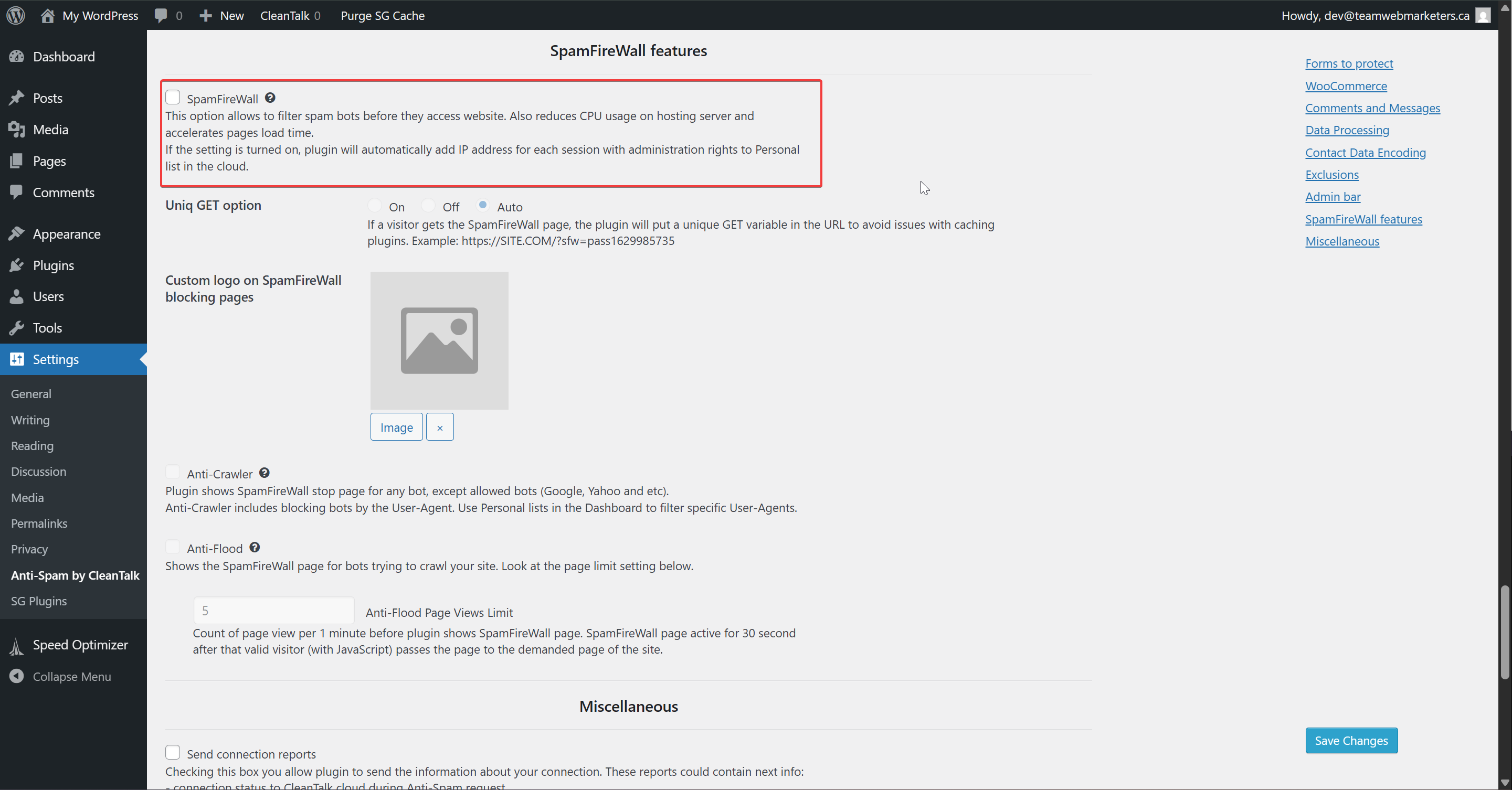
Scroll to "SpamFireWall features" and make sure that "SpamFireWall" is off
Although this can be a useful feature, it creates friction and has previously created conflicts for clients running ad campaigns. The last thing we want to do is show a firewall & spam filter to real people clicking a valuable ad link.
Click "Save Changes"